Open Reports in the project menu. Reports are versions of an architecture repair plan. A save by the same author for the same project within 10 minutes recreates that author's latest report at the same URL and tells the AI it was recreated. Identical content reuses the report without a duplicate. After 10 minutes a new version is created; other authors' reports are preserved. All project members can read and export them; editors and managers can delete versions. Small text reports have no count or retention limit; each report is limited to 256 KiB of JSON. Technical write admission allows 6 save requests and 1 MiB of input per minute per user, shared across their tokens. On rejection the AI receives a retry delay and must wait.
Create with AI
Connect your AI to the project, open AI assistant → Project reports → Prepare a remediation report, or copy:
/mcp__keystone__plan_remediation
Name the project in the chat. First, the AI asks in one message for user scales, daily active share, requests per active user per day and peak/average ratio. “I don't know” uses 10,000 / 100,000 / 1,000,000 users, 10%, 200 requests and ×3. Unattended runs use code or these defaults.
The AI rechecks validation and antipattern findings in source, adds code references, confirms or rejects issues and proposes stages. Saving a report does not change the main diagram. A target branch is a separate proposal requiring the user's authorization.
Read a report
- Findings show priority, explanation, actions and acceptance criteria. Technical verdict and decision badges are hidden; analysis limitations remain in the text.
- The fragile-system section explains each finding and links to affected elements in the main diagram. A duplicate block diagram is not drawn.
- Stages list actions, effort, closed findings and triggers.
- The relative load chart starts at 100% and compounds changes across stages. Select the user scale above it.
- Calculated peak flow is compared with declared capacity: up to 70% holds, 70–100% is near the limit, above 100% exceeds capacity. Missing capacity is not assessed.
- One priority list combines effort and benefit scores from 1 to 5 with implementation details, conditions and diagram links.
- The target state and a list of affected diagram elements complete the report.
Qualitative estimates, not measurements. AI assumptions and estimates are identified separately from server calculations. Even a measurement confidence means a claim reported by AI; Keystone did not run the load test itself.
Export
Markdown is generated by the server. HTML saves the displayed report, selected scale, charts and styles in one file. To get PDF, open that HTML and print from the browser. Only report data stays in the database; exported files are generated on demand. There is no anonymous public report link.
The archive includes Back and How to create a report. The ambiguous Remediation plan copy-command button has been removed. Reports are created in the connected AI chat, not by clicking a creation button on this page.
Back is also available inside an open report and returns to the project archive. Empty load charts are omitted when no effect estimates are available.
The report contents sit on the right and highlight the section being read. Clicking scrolls to that section. The scrollbar is hidden while wheel and keyboard scrolling remain available. On narrow screens, contents appear above the report.
When the AI omits a separate matrix, the application derives it from stages, effort scores and linked findings. Groups without matching stages are omitted. Report and Markdown links open affected diagram elements; technical source-file references are not displayed.
MCP requires a nonblank target state and existing elementIds for every finding. Each FIX finding needs a closing stage with actions. The server completes and stores missing stage/finding matrix coverage without replacing explicit estimates. Unknown load effects remain unknown; empty sections are omitted from the UI and Markdown.
New actionable findings in a plan also appear under Antipatterns. Known findings retain their original validation or antipattern source. If a new finding has no source, the application publishes it as Other with its stated verification scope and links it to the plan. NOT_CONFIRMED and KEEP findings are not published this way. Identical findings are not duplicated; other active findings and team review states are retained.
The report command is visible for both a selected element and the whole project. It includes the current project URL.
Effort and impact has one action list. Each card shows effort and benefit as bars with numeric values and labels. Higher benefit is better; higher effort means more work. Immediate-work cards use the full width with clear scores and a link to their implementation stage. HTML exports preserve the bars and labels.
Example screens
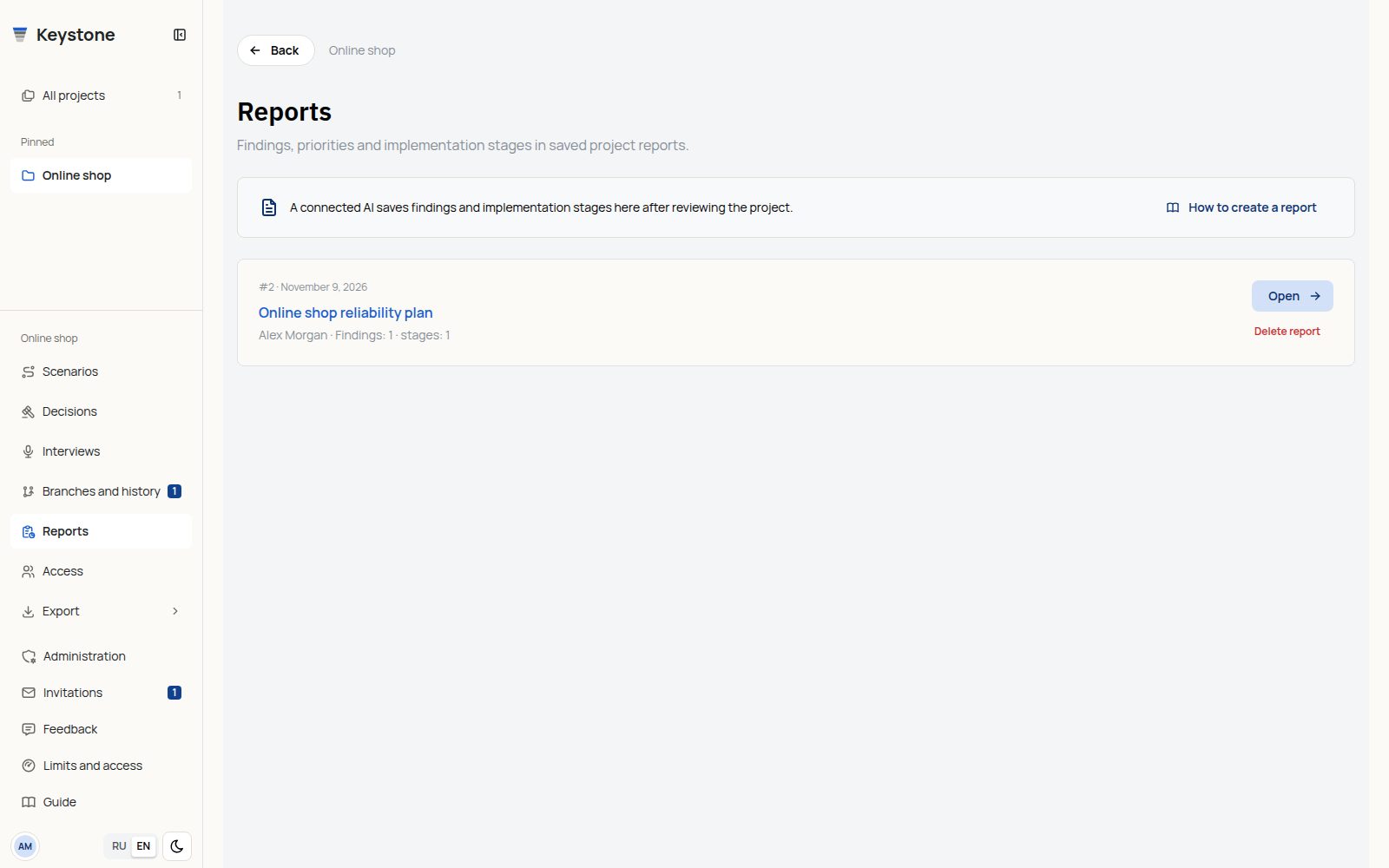
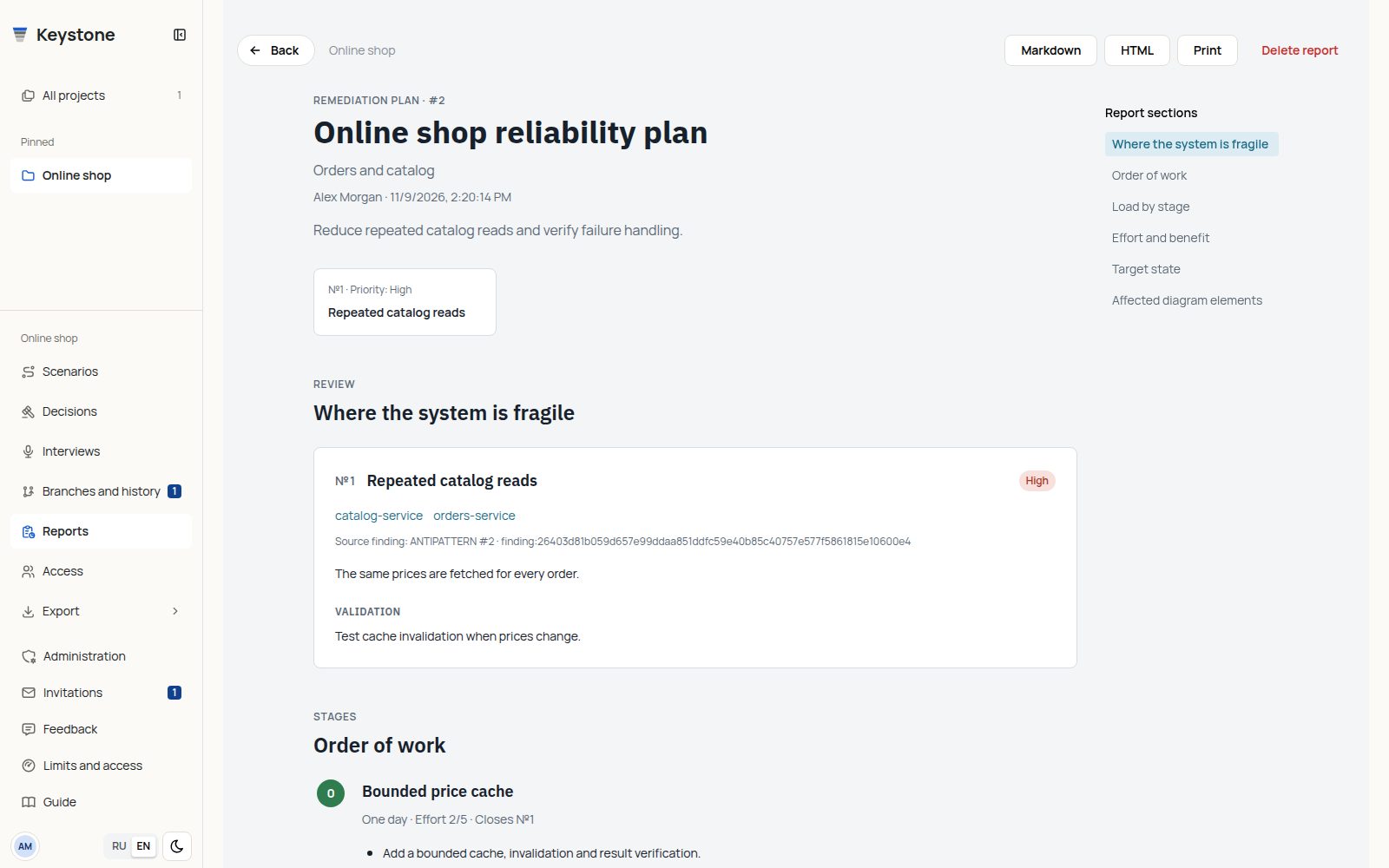
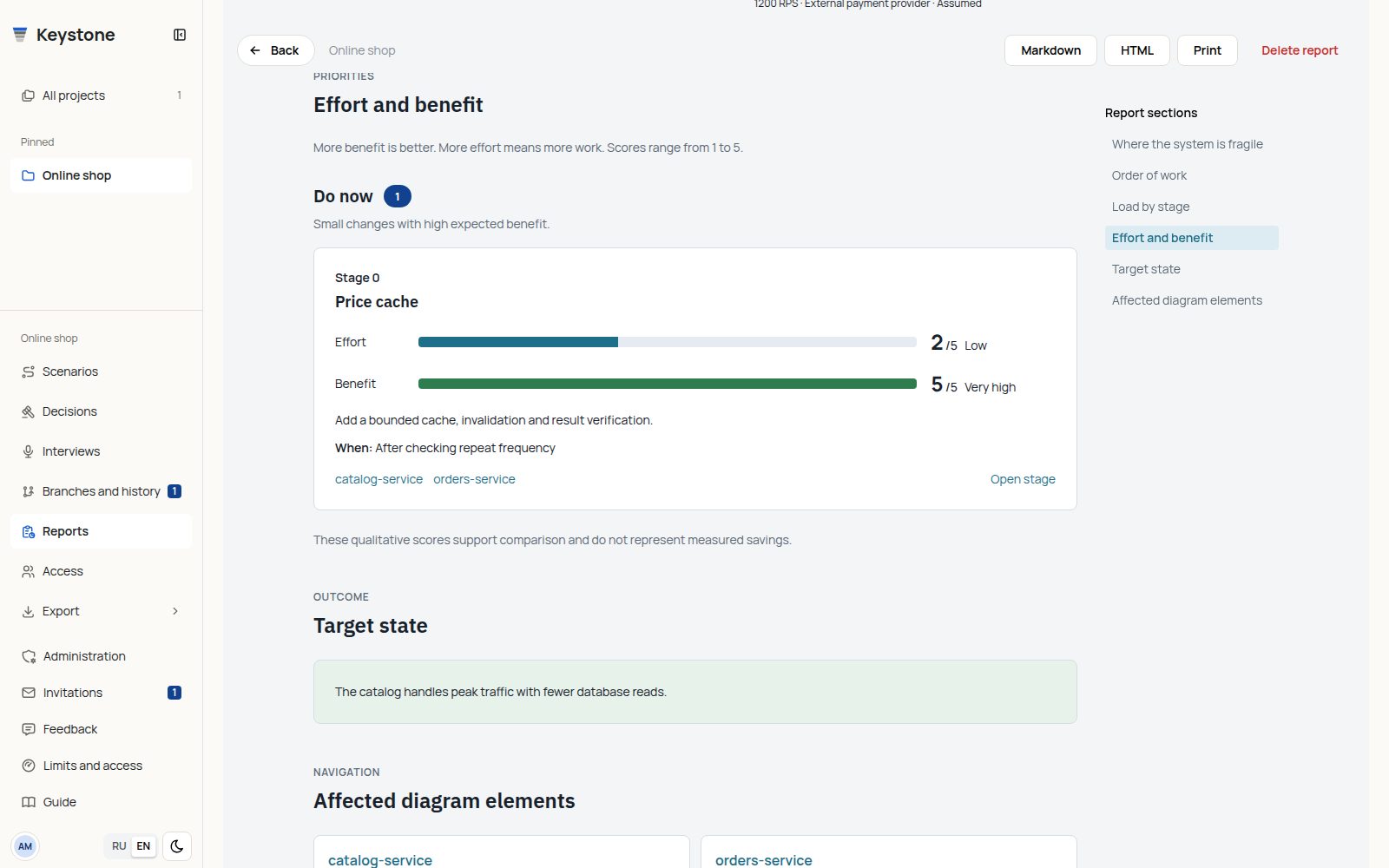
Effort and impact uses one list with bars; there is no scores/bars view switch. Do now, Plan, Alongside and On trigger groups appear only when they contain actions. Finding and stage links open affected diagram elements.
If the model changes after report creation, the page says so. Saved conclusions are not recalculated automatically: ask the AI to recheck source code and produce an updated report.