A branch is a copy of the project's diagram. In it you can rework a part of the architecture without getting in anyone's way, and merge it into the main diagram (main) once it is ready. Every proposal of the AI comes as a branch too.
Everything about branches is in the "Branches and history" window: an item in the left panel of the project (on a narrow screen in the "⋯" of the editor header). Its number counts all open manual and AI branches. Merged and closed branches are excluded; conflicts remain marked on individual branches in the window. The counter is also available in collapsed navigation, interviews and reports.
An AI proposal's description, author, change details and actions are shown inside its own branch. Main and other branches do not show that proposal. Use AI proposal in the branch bar to reopen its details; returning to main closes them.
Merging waits until local edits are saved and the current branch version is loaded. New proposal parts refresh a clean open branch automatically. Unsaved edits are not silently discarded when a conflict occurs.
Create and open a branch
On the "Branches" tab type a name and press "Create branch": it opens at once. Administrators and editors of the project create, change and merge branches; the others see them and may open them to look.
While a branch is open, a violet bar under the editor header says "Branch "…": changes are not in main until it is merged". All levels work in a branch (C4, components, ER), and changes are saved to the branch by themselves. A branch has no co-editing: one person changes it at a time, and if it was saved in another tab the editor asks which version to keep. "Back to main" leaves the branch in the editor without losing anything. The branch stays open after the page is reloaded.
Merge a branch
"Merge into main" is on the branch bar and in the list of branches. It opens the merge window:
- "What changes": the elements, relationships, tables, scenarios and decisions the branch adds, changes or removes;
- "Conflicts": where main and the branch went apart. For each one choose "From main" or "From the branch"; the values of both sides are shown.
A conflict comes up when:
- the same field of the same element was changed differently in main and in the branch;
- an element was removed on one side and changed on the other;
- a relationship or a nested element points at an element only one side keeps.
Everything else merges by itself: what changed on one side only is taken as it is, and table columns, operations and scenario steps are compared field by field. Where cards are and how large is never a conflict: the branch wins.
A branch can be merged once no conflict is left open. If main changed meanwhile, the window says so and works the merge out again. Before the merge the history of versions keeps main as it was ("Before a branch merge").
"Close" closes the branch without merging it; main stays as it is.
History and taking back
The "History" tab is one line of everything that happened to the diagram, by days, newest first:
- edited the diagram: hand edits of main, gathered in sessions of one person;
- merged the branch or merged the AI proposal: who merged it (or "merged by itself"), with what the proposal is;
- took back the merge, closed the branch, rejected the AI proposal.
Every event has its time, counters (+ added, ~ changed, − removed) and what it did in words, such as "Added: 113 components, 25 tables, 254 relationships". Up to three changes are shown at once. Otherwise "Details" opens them in groups: elements by kind, relationships by label (each with where it goes from and to; the same label is gathered into one line with a count), tables, scenarios and decisions; a changed object shows which fields changed. A long group shows its first 20 lines and "Show … more". Moving cards is not history.
The search above finds events by the name of an object or a branch. Next to it the events can be filtered by kind (edits, merges, AI, take-backs and rejections) and by who made them. A day of the line folds with a click on its date.
The timeline automatically loads earlier events as you scroll down. Search and filter changes start a fresh list of matching events. If the next page fails to load, choose Retry loading at the bottom; events already loaded stay in place.
Only the last merge can be taken back, with "Take back" on it in the line; then the one before it becomes available, one step at a time. Taking back is a merge too: if main was edited by hand after it, the window shows conflicts ("As it is now" / "As before the merge").
AI proposals and merging by themselves
Every proposal of the AI is a branch ai/number. It is taken from main as it was when its first part came, so what people change while the AI sends the parts becomes conflicts instead of being lost. Several proposals, from different people, may wait at the same time.
The card of a proposal does not draw it over main: "Open branch" shows the diagram as the proposal would make it, on every level; there it can be corrected, merged ("Merge into main") or rejected ("Reject") from the branch bar. "Apply" on the card merges the branch of the proposal: with one click when nothing conflicts, through the merge window otherwise. "Reject" closes the branch.
The switch "Merge AI proposals without conflicts by themselves" (the "Branches" tab, a project administrator changes it): when the AI sends the last part, a proposal without conflicts merges into main at once, and the AI learns it from the answer. With conflicts the proposal waits for a person, and the project is marked "Conflict in an AI branch" in the list of projects.
New elements a merged proposal brought are laid out on the diagram when it is opened in the editor.
Branch list and activity screens
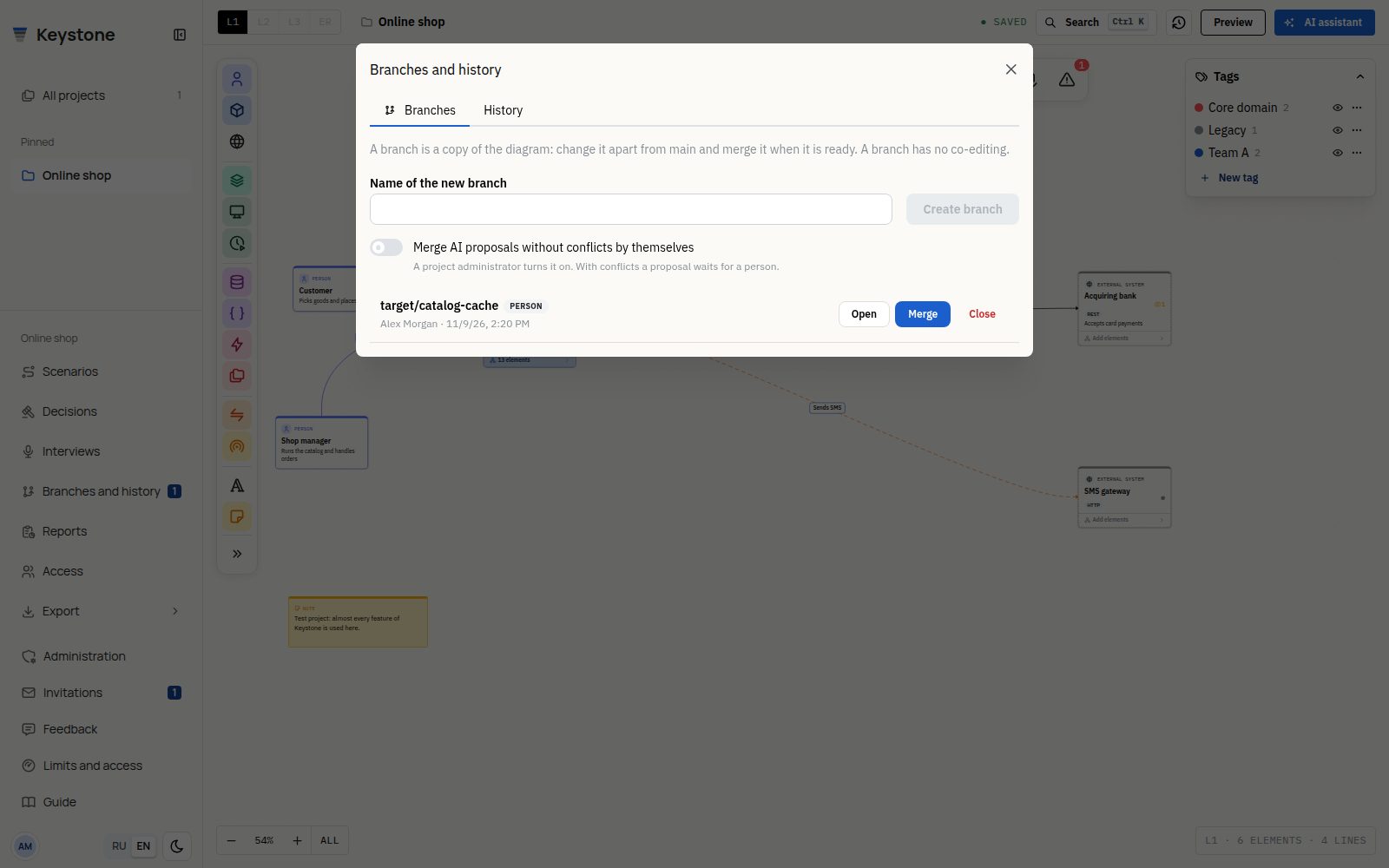
The Branches and history counter includes open manual and AI branches; merged and closed branches are excluded. After opening one, check its name in the violet branch bar before editing or merging.
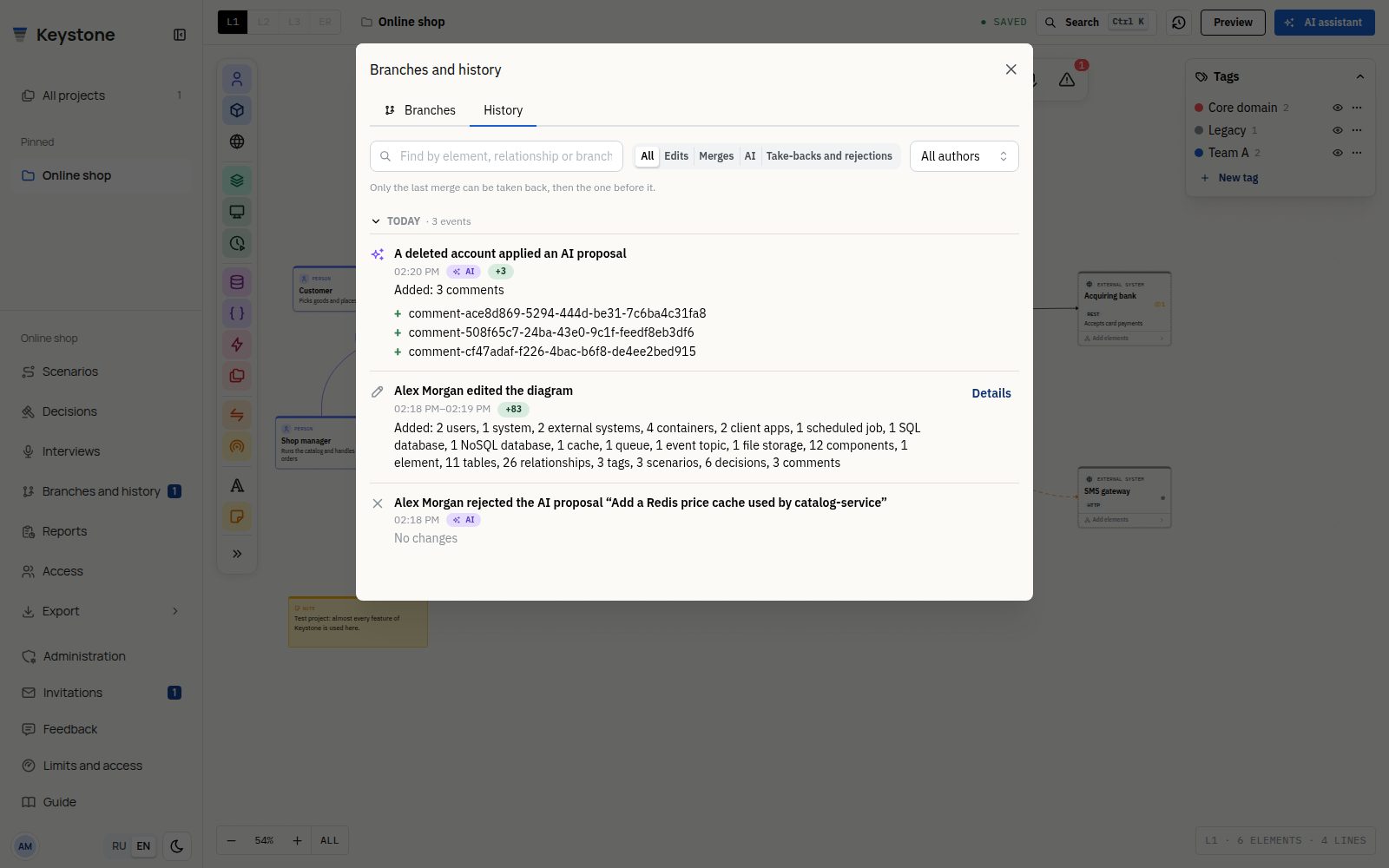
History in this dialog is the project activity log. Restorable diagram snapshots open separately from the history button in the editor header.