Open Limits and access in the left navigation or your account menu. The page shows usage of personal and organization spaces, access level and expiry. If you belong to shared organizations, use the scope buttons to switch between them and personal space. In a free space it also lists the projects near a limit (80% or more of diagram elements or open manual branches) and short rules of what a project counts. Other projects are not listed.
Free space
- 3 personal projects and 3 projects per free shared organization. Members’ personal full access does not waive the organization quota.
- One owned free organization and one free organization editing participation, including ownership and direct project editor access. Full organizations and any number of viewer memberships do not use this slot. Personal full access does not waive this quota.
- 3 distinct shared organization editors, including owners, administrators and editors of individual projects. One person uses one seat across all projects. Viewer counts are unlimited.
- 1500 C4 elements and ER tables per diagram or branch. Text notes and drawings do not count.
- 3 open manual branches per project. AI branches do not count; automatic AI merging is available for free.
- 15 days of snapshots without a count cap; indefinite event history. Existing snapshots have a 15-day transition period after the update.
- Report counts have no separate quota. Existing projects above the cap are preserved; new ones require free capacity or organization full access.
An invitation does not reserve a seat: quotas are checked on acceptance. If no capacity remains, the invitation stays pending and can be accepted after freeing capacity.
Existing data and full access
Existing data exceeding quotas is preserved. A diagram already above 1500 elements can be edited or reduced without increasing its element count. Creating projects, seats and manual branches requires available capacity. Merges are also checked: two allowed branches may exceed the element limit when combined.
An application administrator grants full access to a user or organization permanently or until a date. Personal full access licenses its owner to edit personal projects; guests retain viewing, comments and export. Use a shared organization for collaborative editing.
For a full organization, the application administrator explicitly sets a finite number of named editor seats and selects people. A preview shows who will retain editing and who will become an effective viewer. Owners and administrators also need a seat to edit the model. A person with a free personal account can receive an organization seat. Personal full access or another organization's license cannot replace it.
Organization settings include Editor seats. Managers can assign or release seats within the allocated capacity. Viewers are free and unlimited: they can view, comment and export permitted projects. If capacity is full, invite a viewer. Removing a seat preserves roles and data; reassignment restores editing only while project access still exists. An owner without a seat can manage people and seats, but cannot edit the model.
People with several legacy free organizations receive an explicit selection on the limits page. Nothing is automatically archived before confirmation. Once selected, other owned free organizations become read only for all their members; in organizations owned by others, only your editing is restricted. You can change the selection on the same page.
A refused write shows its reason and next step. Use Download draft to keep an unsaved diagram. Rejected work survives navigation in the current browser tab and is never automatically applied over the server document.
After expiry, the relevant space remains available for reading and export; new changes are refused. Full access snapshots remain retained after expiry. An administrator can renew access or explicitly return the space to free access, enabling free quotas and snapshot retention.
An owner may have up to 3 full-access organizations, separately from one free organization. Expired FULL still occupies a slot until explicitly reset to FREE or transferred to another owner. Joining someone else’s full organization uses no ownership slot. An editor seat belongs to one person in one organization and covers all its projects.
Creating organizations and switching plans
A free organization is created first. If the free ownership or free editing participation quota is occupied, active personal paid access enables automatic creation of a paid organization. Up to three paid organizations are available separately from the free quota. If all slots are occupied, the form explains the refusal and preserves the entered name.
Project folders show Free, Paid, or Paid · expired. The owner can choose Switch to paid or Switch to free in organization settings, review the consequences and confirm. Organization administrators who are not the owner cannot change the plan.
Owner-activated paid access depends on their personal entitlement and includes one named editor seat for the owner. Other people retain their roles and viewing access; an application administrator configures extra capacity. When the owner's paid access expires or is revoked, reading and export remain available. Renewal restores paid access. Independently granted organization access continues on its own terms.
Switching to free requires available free ownership and participation quotas, and no more than three editors including direct project editors. Change extra editors to viewers first. Existing projects and diagrams above free limits are preserved, further growth is restricted and free snapshot retention applies. Transferring an owner-activated paid organization requires active paid access and an available paid organization slot for its new owner; the organization then follows the new owner's entitlement.
Wishlist
Add full access or self-hosted deployment to your wishlist. This is not a purchase or activation. Payments are not connected.
Technical JSON size, security and request rate limits apply to every plan. On quota refusal, the AI must explain the reason, call get_project_limits and stop writes until capacity or access changes; splitting a proposal to bypass quotas is not allowed.
Check usage
Open Limits and access from the avatar menu. Choose your personal workspace or an organization in the usage section to inspect that scope, its expiration and its projects near a limit. This selection only changes the displayed scope; it does not move projects or assign a subscription.
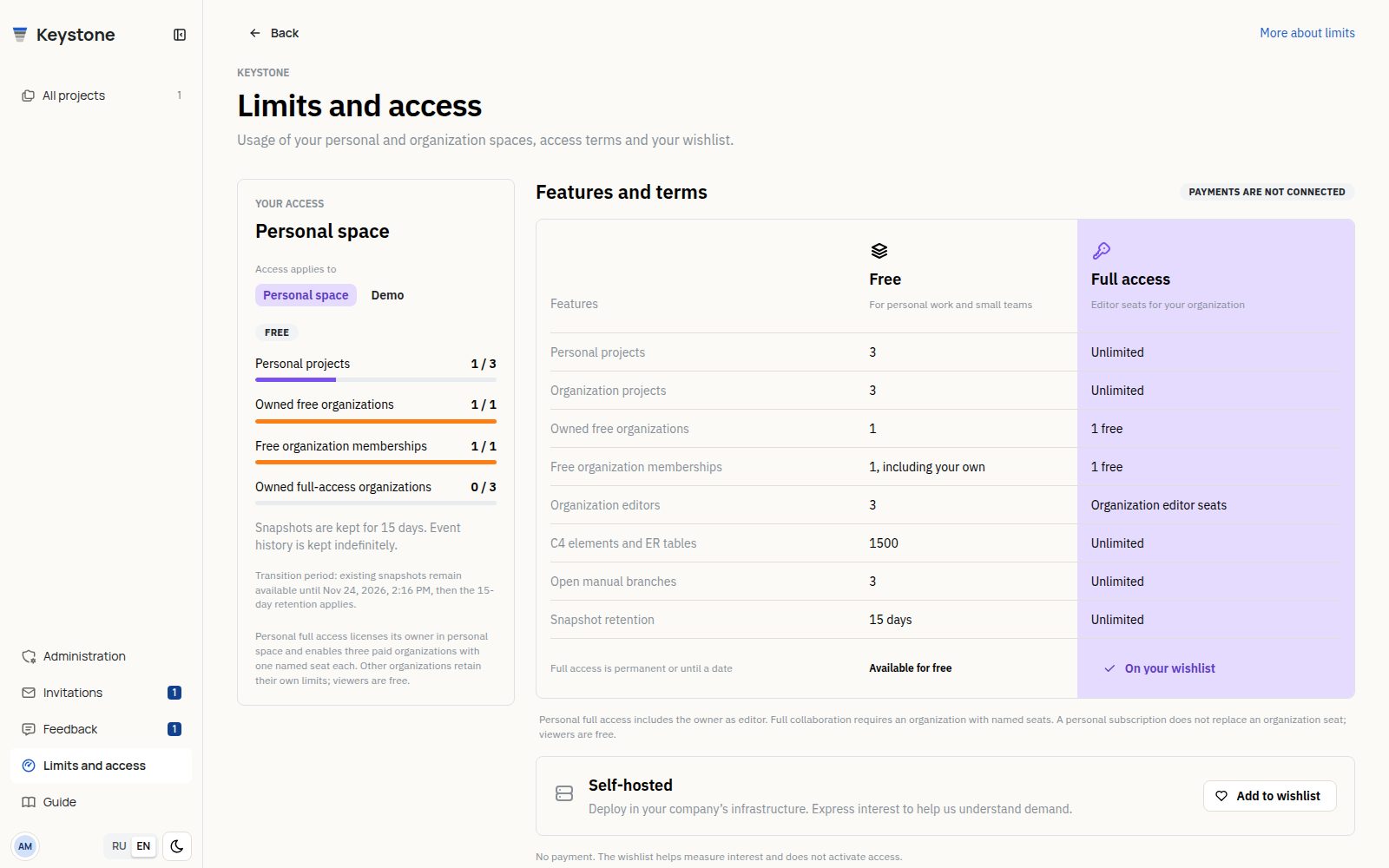
A rejected action explains the exhausted limit and where to change it. For an organization, check its own limits and editor seats even if you have personal full access. The wishlist expresses interest; it does not charge you or activate access.