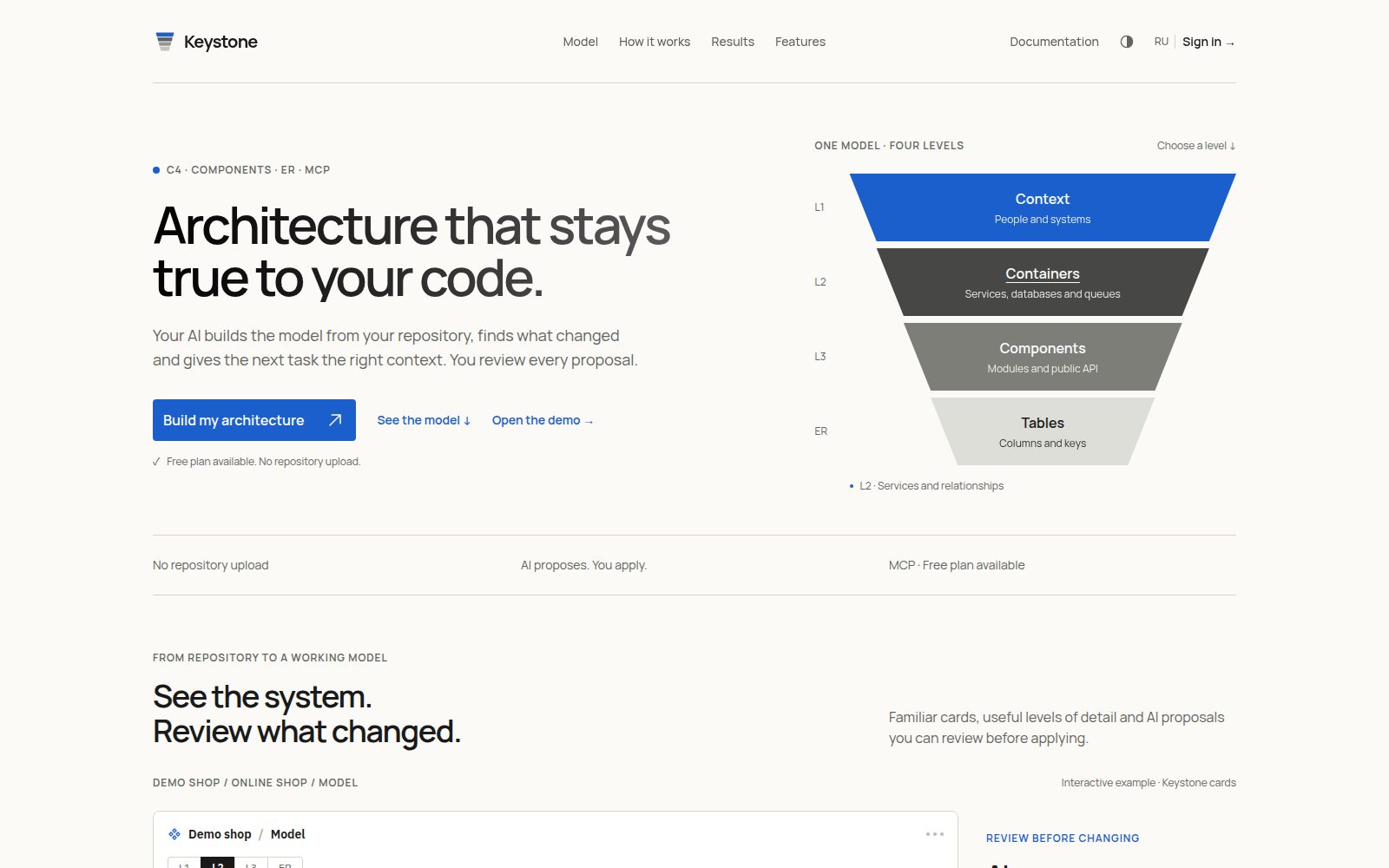
Keystone describes architecture using C4: people and systems, containers, components with public APIs, and database tables. Draw a model yourself or ask your connected AI to build it from code.
Sign in
When Google or GitHub is configured, choose its sign-in button. Your first sign-in creates an account with a personal workspace. Password registration requires an addressed invitation from an application administrator. Open it, enter your name and a password of at least 8 characters. Organization invitations use Google, GitHub or an existing account.
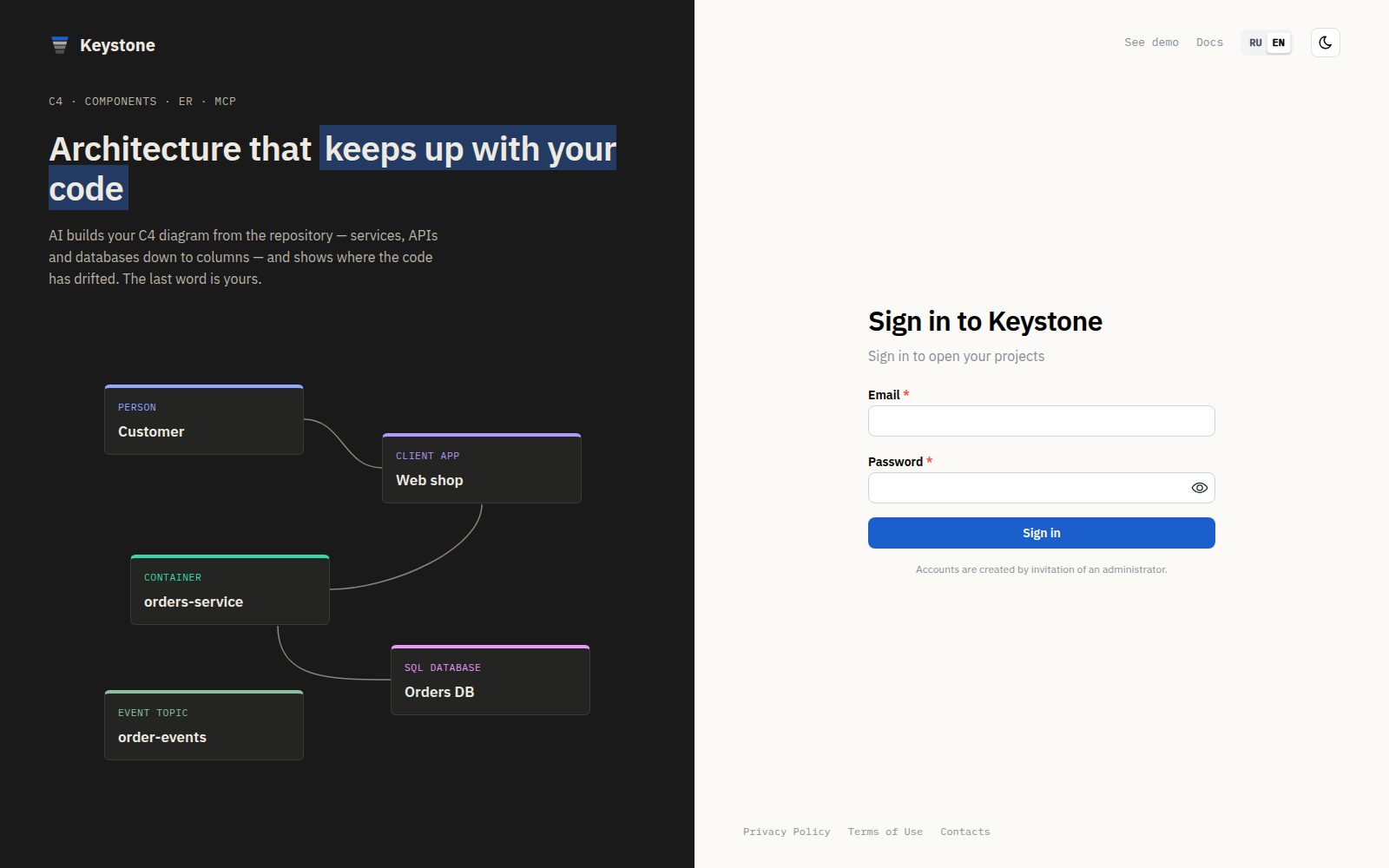
Sign-in is remembered for 30 days. Five incorrect passwords temporarily restrict sign-in for 5 minutes. Ask an application administrator for a one-time password reset link if needed. Invitations do not tell the sender whether an email already has an account.
Projects and organizations
All projects in the sidebar opens the combined list. Folders group your personal workspace and organizations; projects shared by other teams are included. Search, filters and sorting sit above the list. The star pins a project in the sidebar; click the star again to unpin it.
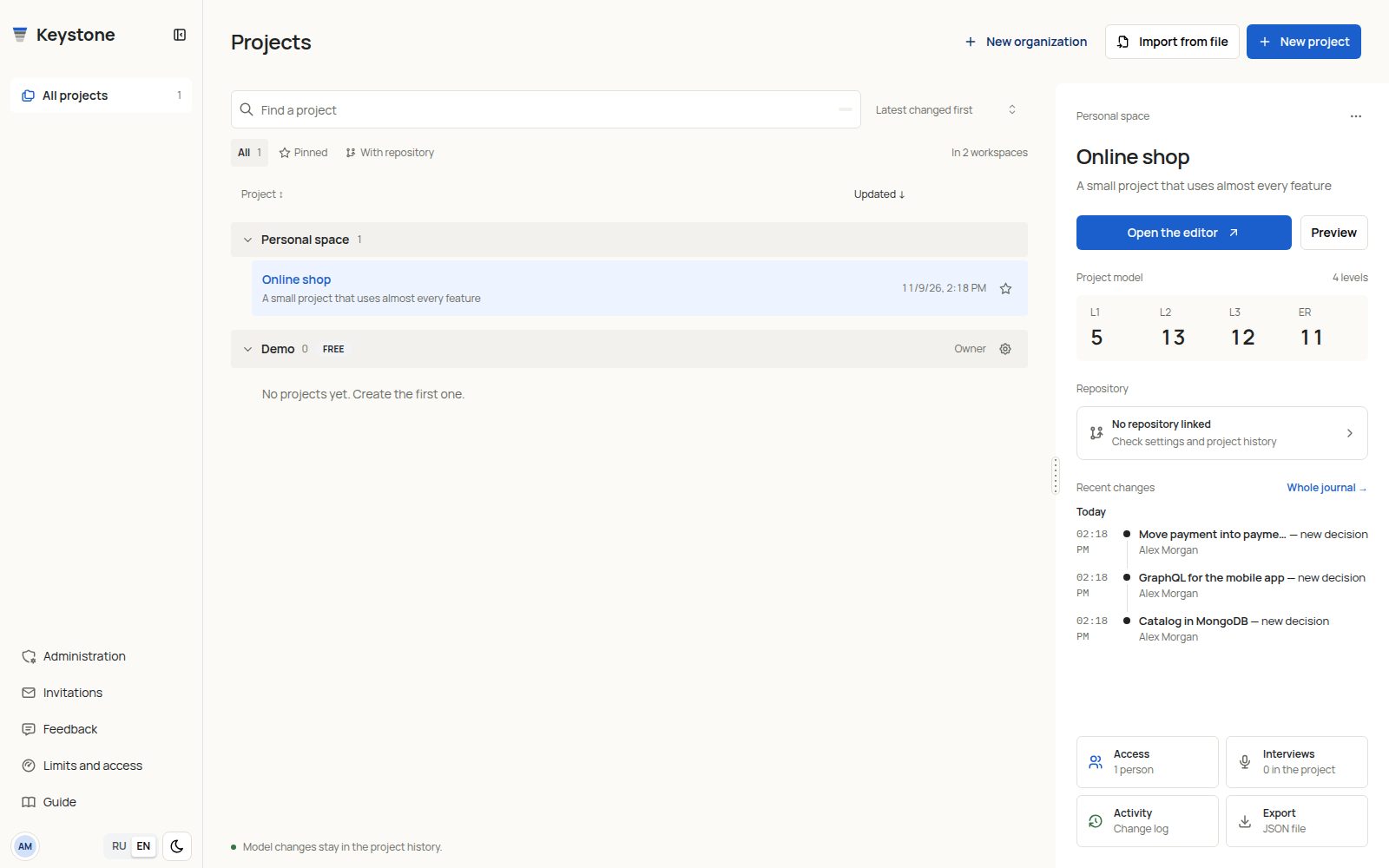
Select a project to see its summary, description and actions on the right; Open in editor opens its diagram. On narrow screens the summary opens over the list. The “⋯” menu offers permitted actions such as rename, copy, export and delete. Creating or importing projects requires management permission in the destination. Limit errors explain the restriction and retain entered form values.
New organization creates a team workspace. The settings icon on its folder opens members and access. Free and Paid labels distinguish organization modes. See Limits and access for creation, conversion and editor seat rules.
The editor
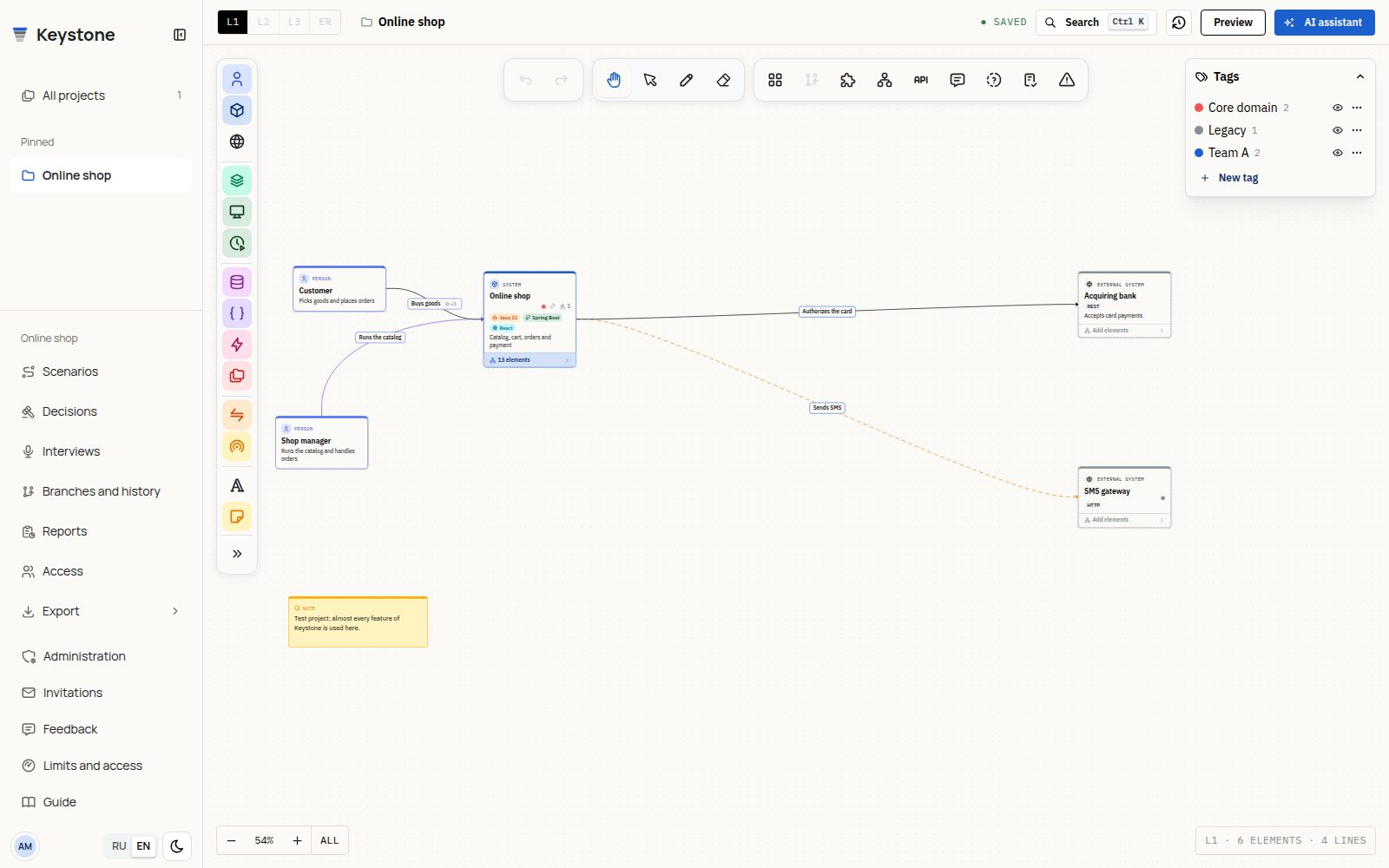
- The palette on the left of the canvas lets you drag elements onto the board. The arrows expand its labels.
- The toolbar contains hand and selection modes, marker, eraser, arrangement and panels for structure, API, scenarios, ADRs, comments and checks.
- Properties on the right show the selected element or relationship. Tabs open descriptions, relationships, decisions, comments and metadata; they wrap when the panel is narrow.
- The header contains L1, L2, L3 and ER levels, the current board path, save status, search, snapshot history, preview and AI assistant.
- The sidebar project menu provides scenarios, decisions, interviews, branches and history, reports, access and export. It stays available on that project's interview and report pages.
Double-click to enter a nested level. Ctrl+K searches all levels; see C4 diagrams for relationships, properties and impact analysis.
Saving and navigation
Changes save automatically; check the header status. Wait for Saved before closing the browser tab. Moving to preview or another section completes the pending save; returning alone should not produce an unsaved-changes warning.
If a write is rejected because of access, a quota or a conflict, read its reason. A local draft does not replace the saved model: download it and resolve the restriction before continuing. See Limits and access.
Personal navigation
Invitations, feedback, help, language, theme and your avatar sit near the bottom of the sidebar. Invitation and feedback counters show pending actions and new replies. Application administrators also see administration. Collapse the sidebar to icons, or open it with the menu button on a phone.
The avatar menu opens Profile and AI tokens and lets you restart the editor tour. Useful next sections are Organizations and access, C4 diagrams and Connecting AI.
Sign in with GitHub
GitHub's verified primary email is used, including when it is hidden from the public profile. If verification is required, confirm the primary address under GitHub Settings → Emails. Keystone does not request repository access.
The first sign-in reuses an account with the same verified email, or creates one if none exists. A permanent GitHub ID is then linked: changing your GitHub login or primary email does not create another Keystone account. Your Keystone name and email do not change automatically. One Keystone account can link one GitHub identity; if another is already linked, use the original sign-in method or ask an administrator.
The button appears after the server administrator configures GitHub. Sign-in alone grants no access to other people's projects: invitations and appropriate permissions still apply.